Appendix II — Messages
Updated Markdown edition of the HVE User's Manual (HVE Version 5, Seventh Edition, January 2006), Appendix II, pages II-1 through II-14.
HVE displays a number of messages alerting the user to various conditions that have occurred. There are two main types of messages:
- Information — These messages provide information to the user and require no response.
- Warning or Error — These messages tell the user something has gone wrong and require the user to respond by taking corrective action.
This appendix describes the messages produced by HVE.
Input Parameter Validation
While entering data, each parameter is validated to determine that it is within an allowable range. HVE performs two levels of validation: Warning and Error. The warning range represents a range of inputs that is outside the normal range for a parameter, but is still allowed. The user is alerted to the suspicious data and may choose to view and change the data or ignore the warning. The error range represents a range of values that is not allowed, either because the calculation model would fail (e.g., a division by zero), or because the entered value is simply preposterous (e.g., an engine speed of 3,000,000 RPM). In this case, the user must correct the errant value before HVE will allow the user to continue. The allowable range is displayed in the dialog.
NOTE: These ranges are assigned in the
language.rscfile and are user-editable.
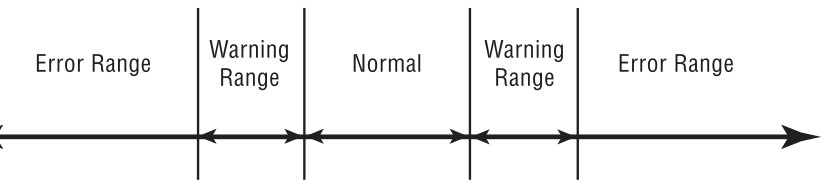
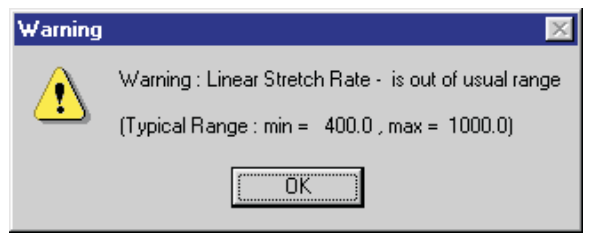
Figure II-1 — Warning/Error range checking for all inputs. Figure II-2 — Warning Range dialog. Figure II-3 — Error Range dialog.
Event-related Messages
While executing events, a number of conditions may occur that require a response by the user. These conditions are described below.
NOTE: These messages may be produced by HVE or by the current calculation model. Messages produced by the calculation model may also appear in greater detail in the event's Messages output report during Playback.
Inter-process Communication
- 'Event' Died Unexpectedly! — The current calculation model stopped running before it returned. The abnormal termination may be caused by a variety of conditions, but usually is the result of an untrapped calculation error (e.g., division by zero) or operating system error. After clearing the message dialog, check all running processes to confirm no unwanted processes are running.
- Writing to message queue failed! — A failure occurred in the communication (the passing of data) between HVE and the current calculation model (this communication occurs in a virtual device called the message queue). After clearing the message dialog, check the inter-process communication status to confirm the message queue is clear.
Event Verify
To execute an event, the user first must select the human(s) and vehicle(s) and a calculation model using the Event Information dialog. When OK is pressed, HVE verifies the compatibility between the selected objects and calculation model.
NOTE: Actually, it is up to the calculation model to perform these diagnostics and return any errors to HVE.
If an incompatibility is discovered, a message dialog is displayed and the user must correct the problem before continuing. The Event Verify error messages are listed below.
General Incompatibility
- Incompatible Object(s): Bad Data — The human and/or vehicle data are incompatible with the calculation model (the least descriptive of all messages; normally one of the more detailed messages below is displayed instead).
- Incompatible Object(s): Wrong Object Type — The calculation model was expecting a different type of object (e.g., the user selected a human object and a simulator that expects vehicles).
- Incompatible Object(s): Wrong Number Of Objects — The user selected either too many or too few objects for the selected calculation model.
- Incompatible Object(s): Number Of Axles Not Supported — The vehicle has a different number of axles than allowed by the selected simulator.
- Incompatible Object(s): Tandem Axles Not Supported — The vehicle has tandem axles and the simulator does not allow tandem axles.
- Incompatible Object(s): Dual Tires Not Supported — The vehicle has dual tires and the simulator does not allow dual tires.
- Incompatible Object(s): Bad Combination Vehicle Configuration — The set of vehicles is not compatible with the selected calculation model (for example, two trailers without a tow vehicle). Remember that the selection order of the vehicles (as displayed in the Selected Objects list) implies the order assigned by the simulator: the first object will be the tow vehicle, next the first trailer, and so forth.
- Incompatible Object(s): Suspension Type Not Supported — The suspension type is not allowed by the calculation model (e.g., a commercial vehicle simulator may not allow independent suspensions).
Incompatible Humans
- Bad or Incompatible Human Data — The human data are incompatible with the calculation model (least descriptive message).
- ... Check Inertias — The inertial properties of the selected human(s) are not compatible with the selected calculation model.
- ... Check Ellipsoids — The contact ellipsoid properties are not compatible with the selected calculation model.
- ... Check Joints — The joint properties are not compatible with the selected calculation model.
- ... Check Tolerances — The injury tolerances are not compatible with the selected calculation model.
Incompatible Vehicles
- Bad or Incompatible Vehicle Data — The vehicle data are incompatible with the calculation model (least descriptive message).
- ... Check Dimensions — Dimensional properties not compatible.
- ... Check Inertias — Inertial properties not compatible.
- ... Check Stiffness Coefficients — Stiffness coefficients not compatible.
- ... Check Contact Surfaces — Contact surface properties not compatible.
- ... Check Belt Restraints — Belt restraint system properties not compatible.
- ... Check Airbag Restraints — Airbag restraint system properties not compatible.
- ... Check Inter-vehicle Connections — The inter-vehicle connection properties (hitch, kingpin, etc.) for the selected vehicle(s) are not compatible with each other (for example, the tow vehicle has a ball and the trailer has a kingpin). It is also possible that one or more vehicles has no connection at all.
- ... Check Drag Coefficients — Drag coefficients not compatible.
- ... Check Drivetrain — Drivetrain properties not compatible.
- ... Check Engine — Engine data not compatible.
- ... Check Transmission — Transmission data not compatible.
- ... Check Differential — Differential data not compatible.
- ... Check Tire Properties — Tire data not compatible.
- ... Check Suspension Properties — Suspension data not compatible.
- ... Check Brake Assembly Properties — Wheel brake data not compatible.
- ... Check Vehicle Brake System — Brake system (master cylinder) data not compatible.
- ... Check Vehicle Steer System — Steer system data not compatible.
Incompatible Environment
- Bad or Incompatible Environment Data — The environment data are incompatible with the calculation model (least descriptive message).
- ... Check Wind Speed/Direction — Wind speed or direction data not compatible.
- ... Check Gravity — The gravitational constant is not compatible.
- ... Check Air Temperature/Pressure — Ambient air temperature or pressure data not compatible.
- ... Check Road Surface Polygons — The 3-D polygon database in the current environment is not compatible with the selected calculation model.
Incompatible Event
- Bad or Incompatible Event Data — The event set-up data are incompatible with the calculation model (least descriptive message).
- ... Check Position(s) — The position(s) supplied for one or more objects are not compatible with the selected calculation model.
- ... Check Position — POC Lies On A Straight Line — The point-on-curve position supplied for one or more vehicles lies on a straight line between separation and end-of-rotation or rest. This condition is not allowed because it will cause a singularity during the path definition calculations.
- ... Check [Initial, ..., Final/Rest] Position — The indicated position(s) are not compatible with the selected calculation model.
- ... Check Position Angle — The orientation supplied for one or more objects is not compatible.
- ... Check Position Limits — The position supplied for one or more objects is beyond the allowable range.
- ... Check Velocity — The velocity supplied for one or more objects is beyond the allowable range.
- ... Check Driver [Throttle, ..., Gear] Table — The driver input table (throttle, brakes, gear selection or steering) supplied for one or more vehicles is not compatible with the selected calculation model.
- ... Check Damage Profile Data — The damage profile supplied for one or more vehicles is not compatible.
- ... Check Damage — Invalid CDC — The Collision Deformation Classification (CDC) supplied for one or more vehicles is not compatible.
- ... Check Damage — Invalid Crush Depths — The crush depths supplied are not compatible.
- ... Check Damage — Invalid Damage Width — The damage width supplied is not compatible.
- ... Check Damage — Invalid Damage Offset — The damage offset supplied is not compatible.
- ... Check Damage Energy — A failure occurred while calculating the damage energy for one or more vehicles (check damage-based results for damage energy).
- ... Check PDOFs — The user-entered PDOFs are not opposing each other.
- ... Check Damage — Force Imbalance (Newton's 3rd Law) — The Damage Analysis (based on user-entered damage profiles, PDOFs and stiffness coefficients) resulted in a significant difference in the calculated forces on each vehicle (according to Newton's 3rd Law, they should be equal).
- ... Check Collision Pulse — The collision pulse supplied for one or more objects is not compatible.
- ... Check Contact Surfaces — The contact surface data supplied for one or more vehicles are not compatible.
- ... Check Payload — The Payload Data supplied are not compatible.
- ... Check Restraints — Invalid Belt Data — The Belt Restraint Data supplied are not compatible.
- ... Check Restraints — Invalid Airbag Data — The Airbag Data supplied are not compatible.
- ... Check Simulation Controls — The Simulation Control Data supplied are not compatible.
- ... Check Program Options — The Program Option Data supplied are not compatible.
- ... Check Human Ellipsoids — No [Head, Knee, Chest] Specified — A contact ellipsoid required by the current calculation model was not supplied.
- ... Check Airbag — No Backside Contact Specified — No backside contact surface was supplied for the current vehicle (airbag calculations require a vehicle contact surface behind the airbag).
- ... Check Vehicle — No Seat Contact Specified — No contact surface named 'Seat' was supplied for the current vehicle (some occupant models require a 'Seat' contact surface).
- ... Belt not installed at selected seat position — The vehicle does not have a belt restraint system installed at the selected occupant position. Belt restraints cannot be assigned.
- ... Airbag not installed at selected seat position — The vehicle does not have an airbag restraint system installed at the selected occupant position. Airbag restraints cannot be assigned.
Incompatible Tires
- Bad or Incompatible Tire Data — The tire data are incompatible with the calculation model (least descriptive message).
- ... Invalid Tire Size Specification — The tire size specification (e.g., P225/75R14) supplied for one or more vehicles is not compatible.
- ... Invalid Tire Dimensions — The tire dimensions supplied are not compatible.
- ... Tire Type Not Supported — The tire type supplied is not compatible with the selected calculation model.
Event Execution Messages
The following normal-completion messages do not indicate an error:
- Done — The current calculation model ran to completion without error.
- Simulation interrupted by user — The user paused the simulation before it reached a termination condition.
- Termination Velocity Reached — All the humans and/or vehicles reached the termination velocity (i.e., they stopped moving).
- Maximum simulation time reached — The current simulation time reached the maximum simulation time.
Event termination and warning messages:
- Event Termination: Wheel Lift-off — During execution, the vertical force at one or more wheels became zero or negative (some simulations do not allow this condition).
- Event Termination: Excessive Roll or Pitch — The vehicle roll or pitch angle exceeded the allowable value.
- Event Termination: Excessive Surface Slope — A wheel traveled on a surface with an excessive slope.
- Event Termination: Integration Error — The integration routine failed; the integration timestep was halved more than the allowable number of times. This usually indicates an instability in the numerical integration — either a very dynamic system or errant derivative calculations.
- Event Termination: Integration Timesteps Too Large For 3-D Simulation — The current integration timestep is too large for a 3-D simulator. Select the Simulation Controls dialog and reduce the integration timestep(s).
- Event Termination: Excessive Longitudinal Tire Slip — The current level of longitudinal tire slip is too large for a linear tire model.
- Event Termination: Excessive Lateral Tire Slip — The current level of lateral tire slip is too large for a linear tire model.
- Event Termination: Radial Tire Model Error — The radial tire model failed.
- Event Termination: Tire Model Integration Error — The tire model failed due to an integration failure.
- Event Termination: Tire is on a bad surface — The surface beneath the tire contact patch has missing or defective information.
- Event Termination: Entered initial position is illegal — The initial position is not allowed, probably because the initial orientation angle is excessive.
- Event Termination: Engine RPM exceeded maximum table value (threw a rod!) — The current engine RPM is higher than the RPM range for the vehicle engine model. This normally occurs because of a combination of high initial velocity and low gear entered in the transmission table.
- Warning: Inter-vehicle forces Violate Newton's 3rd Law — The calculated collision force on each vehicle is significantly different (they should be equal, ignoring tire and aerodynamic forces).
- Event Termination: Zero Length Collision Vector — During the collision phase, the calculation model calculated a zero (or negative) length collision vector. This suggests excessive crush depth; the collision severity may be beyond the scope of the collision model.
- Event Termination: Invalid Collision Vector Angle — The angle between collision vectors was exactly 90 degrees; this condition is not allowed.
- Event Termination: Too Many Collision Vectors — The number of collision vectors required to span the damage range exceeded the allowable number.
- Event Termination: Too Many Collision Vector Length Adjustments — The calculation model adjusted the collision vectors too many times, suggesting the collision phase calculations are unstable. Try reducing the overlap at impact or the collision phase integration timestep.
- Warning: Too Many Damage Ranges (Remaining Are Ignored) — Too many damage peaks were recorded during the collision phase (sometimes occurs during sustained impact). The simulation results are valid, but tabulations based on accumulated damage arrays may not include the latter peaks.
- Event Termination: Collision Vector Length Negative After Restitution — The restitution calculations resulted in a negative vector length. This is a fatal error; it might be eliminated by reducing the integration timestep or adjustment length per timestep.
- Warning: Unmatched Damage Range — The collision phase simulation was unable to match the PDOF with a particular damage profile (for vehicles with multiple damage zones). Informative only; results are not affected.
- Event Termination: Common Velocity Error — The separation velocity results violated the common velocity assumption (inherent to damage-based delta-V calculations). Usually considered a fatal error. See also Common Velocity Warning.
- Warning: Common Velocity Adjustment Performed — The separation velocities were adjusted to be consistent with the common velocity assumption. See also Common Velocity Error.
- Event Termination: Spinout Error — The calculated separation velocities were inconsistent with the laws of physics. Displayed by reconstructions that use the modified Marquard method for calculating separation velocities; usually indicates excessive wheel lock-ups or too much spin over a short path length.
- Event Termination: Excessive Joint Articulation Angle — The current joint articulation angle exceeds the maximum angle; normally indicates errant initial joint angles.
- Event Termination: Too Many Human Ellipsoids — The number of ellipsoids exceeds the number allowed by the simulation model; usually solved by removing one or more contact ellipsoids from the selected human.
- Event Termination: Too Many Vehicle Contact Surfaces — The number of contact surfaces exceeds the number allowed; usually solved by removing one or more contact surfaces from the selected vehicle.
- Event Termination: Bad Human vs Vehicle Contact Force — The simulation model calculated an excessive contact force; normally indicates a deeper problem in the simulation model calculations.
- Event Termination: Excessive Inter-vehicle Articulation Angle — The articulation angle between a tow vehicle and trailer exceeded the allowable value specified for the tow vehicle. This usually indicates a jackknife condition.
- Event Termination: Error in Derivative Calculations — An error occurred while calculating the derivatives (accelerations) for the current timestep; normally indicates a deeper problem in the simulation model calculations.
- Event Termination: Singular Matrix (Bad News!) — This message should never occur for a well-behaved dynamic system; it indicates a fundamental problem in the simulation model.
- Event Termination: Collinear Collision — Can't Use Momentum — A collinear collision: attempting to use linear momentum as a final value problem (separation velocities known, impact velocities to be calculated) results in a mathematical singularity (division by zero).
- Event Termination: No [Human, Vehicle] Position(s) Assigned! — One or more required positions were not assigned; enter the required positions.
- Event Termination: No [Human, Vehicle] Velocity(ies) Assigned — One or more required velocities were not assigned; enter the required velocities.
Output Report Errors
All of the following indicate a missing or defective physics resource file (the resource file contains the language-specific text for output reports produced by the current calculation model):
- Output Report Error: Trouble parsing physics' resource reference filename
- Output Report Error: Bad keyword in physics' resource reference file
- Output Report Error: Cannot open physics resource reference file
- Output Report Error: Empty physics resource reference file
- Output Report Error: HVEFILES not available to physics process — The
resource file could not be found because the
HVEFILESenvironment variable is missing or defective. - Output Report Error: Bad resource reference definition string — The resource file contains a defective string.
- Output Report Error: Unexpected EOF in physics resource reference file — The resource file is defective.
← Previous: Appendix I — Installation & Setup | Index | Next: Appendix III — Coordinate Systems →