Appendix I — Installation & Setup
Updated Markdown edition of the HVE User's Manual (HVE Version 5, Seventh Edition, January 2006), Appendix I, pages I-1 through I-10. The installation and licensing procedures below describe the 2006-era distribution (CD-ROM, parallel-port EDKEY, Windows 95–XP) and are retained as legacy reference; consult EDC (www.edccorp.com) for current system requirements, installation media and licensing. The HVE file system section describes the file locations used by the current version of HVE.
This section of the manual describes the basic computer hardware system requirements for using HVE and also how to install HVE software.
System Requirements (legacy)
HVE runs on computers running a Windows operating system. The recommended requirements printed in the original edition were:
- Intel Pentium IV processor (or similar)
- 128 MB RAM
- 9 GB hard disk
- Windows 95/98/ME or NT/2000/XP
- CD-ROM drive
- OpenGL-compatible graphics card (32 MB or larger)
- Video output device
- 3-button mouse
- 17-inch monitor
(updated: these figures are far below any modern PC; current HVE is a 64-bit Windows application. For the latest information about HVE and recommended hardware configurations, contact EDC Technical Support or visit www.edccorp.com.)
HVE Software Installation (legacy)
For the first installation and for software updates, HVE was installed directly from CD-ROM.
NOTE: Please review the next section, Software Security and Protection, before installing your HVE software.
Installation From CD-ROM
- Windows 95/98/Me: Insert the HVE CD-ROM; the installation program starts automatically.
- Windows NT/2000/XP: You must log in as Administrator to install HVE. Insert the CD; the installation program starts automatically.
NOTE: If the installation program does not start automatically, start it by clicking Start, Run..., and typing
F:\Setup(where F is the drive letter for your CD-ROM drive).
The installation program guides you through the installation. You will be asked to type in your name, your company name and your User ID. This information should correspond to the information printed on the license media included with your HVE program CD. If you are installing an update, this information is already filled in; confirm that it is correct.
You will be asked to choose one of two license options:
- I will use the license provided by EDC — a file browser is displayed;
browse to the location of your license file (HVE license files use the
.LICextension), then select and open it. - No license. I will run in Demo Mode — the license file selection is bypassed. HVE will run in Demo Mode, with certain features disabled:
- Vehicles cannot be selected from the EDC Custom Vehicle database (vehicles are selectable from the Generic and Tutorial databases).
- New events cannot be created; however, you can replay, modify and re-execute existing events from previously saved HVE or HVE-2D cases.
- Case files cannot be saved.
Before installing files, the installation program displays all your selections; choose Back to correct anything. After installation is complete, you will be asked to restart your computer.
NOTE: You may choose not to restart your computer; however, HVE cannot be used until your computer has been restarted!
NOTE: If you installed a software update, the installation overwrites existing files of the same name, but does not remove any other files, so user-saved data files will not be damaged.
NOTE: The installation program makes a copy of your
Language.rscfile before copying the new one. If you have made edits to your previousLanguage.rscfile that you wish to transfer to your new HVE installation, you can copy and paste the modified portions of your previous file into the new one. EDC STRONGLY RECOMMENDS that you make a back-up copy of the newLanguage.rscfile before making changes. HVE will not run with a defectiveLanguage.rscfile!
Software Security and Protection (legacy)
Your HVE software and its components are protected from unauthorized use by one of two methods, chosen at time of purchase:
Lock to Your Computer's Hard Disk
Prior to the time of purchase, you may have received a program from EDC
called ECHOID.EXE:
- Execute the ECHOID program. A dialog with two lines of information
appears. The first line, of the form
4 - XXXXX, is the information you will need to provide EDC Customer Service to receive your license file. Record the complete six-digit code. - Phone, fax or email this six-digit code, along with your User ID number and contact information, to EDC Customer Service.
- The appropriate license file will be included with your software package.
If you did not receive a license file with your HVE software package: install HVE in Demo Mode, then select Start, Programs, HVE, Show Computer ID and follow the same code-reporting procedure. EDC will send the license file via email or mail; while waiting (normally a few hours) you can use HVE in Demo Mode.
Once you have received the license file, copy it to your HVE program
directory: either reinstall HVE and choose the license file during
installation, or copy the license file (supplied with a filename of the
form hveXXX-X.lic) directly to your \Hve program folder and rename it
lservrc.
NOTE: Be very careful when you rename the file. It should be in lower case, and should include no period/dot or extension.
Lock to Your EDKEY
If you chose this method, a license file was supplied with your HVE software and must be selected during installation. In addition, you must install the EDKEY (a parallel-port hardware key) before your HVE software can be used:
- Locate your computer's parallel port (25-pin female connector).
- If a printer cable is connected, disconnect it.
- Plug the EDKEY into the parallel port.
- If a printer cable was connected, reconnect it to the other end of the EDKEY (printer data passes through the EDKEY).
NOTE: The User ID on the EDKEY must match the User ID on the license file. Otherwise, HVE will run only in Demo Mode.
NOTE: Your computer may have additional hardware dongles attached to the parallel port. These may normally be stacked back-to-back without affecting the operation of other programs.
HVE File System
It is important that users of HVE know and understand its file system in order to perform system maintenance as well as to copy files between computer systems.
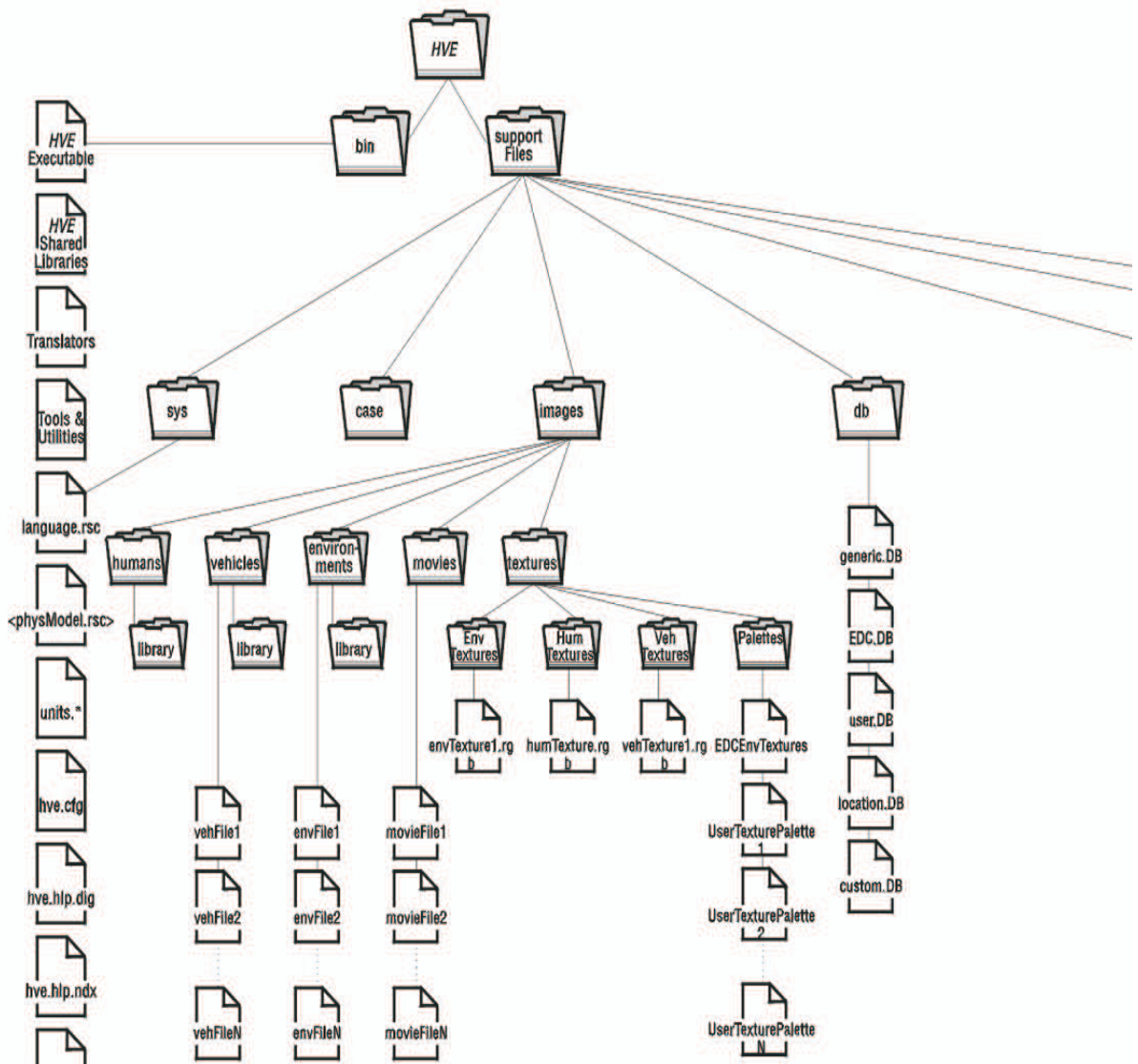
Figure I-1 — HVE File System diagram.
Table I-1 — Directory Names and Descriptions
| Directory Name | Description |
|---|---|
hve |
Main installation directory for HVE |
hve\supportFiles |
Root subdirectory for the various support file systems required by HVE |
hve\supportFiles\case |
Subdirectory containing all HVE case files |
hve\supportFiles\images |
Root subdirectory for all image files (2-D bitmaps and 3-D geometry) |
hve\supportFiles\images\humans |
Subdirectory containing 2-D bitmap and 3-D geometry files for humans |
hve\supportFiles\images\vehicles |
Subdirectory containing 2-D bitmap and 3-D geometry files for vehicles |
hve\supportFiles\images\environments |
Subdirectory containing 2-D bitmap and 3-D geometry files for environments |
hve\supportFiles\images\movies |
Subdirectory containing movie files (e.g., AVI) created using the Playback Editor, and (in a frames subdirectory) single-frame image output (updated: the original table printed this as supportFiles\movies; HVE places movies under supportFiles\images\movies — in current installations under the public user directory, e.g. C:\Users\Public\HVE\supportFiles\images\movies — and the location may be overridden in the Video Options dialog) |
hve\supportFiles\db |
Subdirectory containing human, vehicle and tire databases; also contains location and vehicle contact surface materials databases |
hve\supportFiles\colPulse |
Subdirectory containing user-saved collision pulse files |
hve\supportFiles\sys |
Subdirectory containing various HVE system and resource files |
Table I-2 — Files in \hve directory
| File Name | Description |
|---|---|
hve (executable) |
HVE executable |
hve*.lic |
HVE license file |
Table I-3 — Files in \hve\supportFiles\sys subdirectory
| File Name | Description |
|---|---|
language.rsc |
Resource file for HVE; contains text strings, unit name format and error/warning ranges for each parameter in the user interface. Also contains all units conversion factors (used for converting user units to program units) |
<phys_model>.rsc |
Resource file for each installed reconstruction or simulation model (contains text strings for all output report strings) |
units.si |
Resource file for SI (metric) units; contains user name string for each program unit |
units.us |
Resource file for US units; contains user name string for each program unit |
hve.cfg |
Configuration file; saves current user preferences and other parameters on HVE shutdown |
← Previous: Chapter 32 — HVE Tutorial | Index | Next: Appendix II — Messages →