Chapter 1 — What Is HVE?
Updated Markdown edition of the HVE User's Manual (HVE Version 5, Seventh Edition, January 2006), Chapter 1, pages 1-1 through 1-7. Revised for the current HVE release.
Overview
HVE is a computer environment for studying interactions between humans, vehicles and their environment. HVE stands for Human-Vehicle-Environment, the three factors which influence a crash. HVE allows the user to create detailed, 3-dimensional models of humans, vehicles and environments, study their interaction using HVE-compatible reconstruction and simulation models, and to combine the results of several interactions involving multiple humans and vehicles into a single coherent sequence.
HVE is essentially five editors:
- Human Editor — Used for creating and editing 3-D models of humans
- Vehicle Editor — Used for creating and editing 3-D models of vehicles
- Environment Editor — Used for creating and editing 3-D models of the environment
- Event Editor — Used for setting up and executing reconstruction and simulation models which study the interactions between the selected humans, vehicles and environment
- Playback Editor — Used for combining the results of several events into a single, coherent sequence which may include multiple humans and vehicles
These five editors are the natural extension of what HVE does. Each editor is described briefly here in this section. For a complete description, refer to the individual editor's section in this manual.
Human Editor
The HVE Human Editor, like each of the five editors, has an information dialog and a viewer.
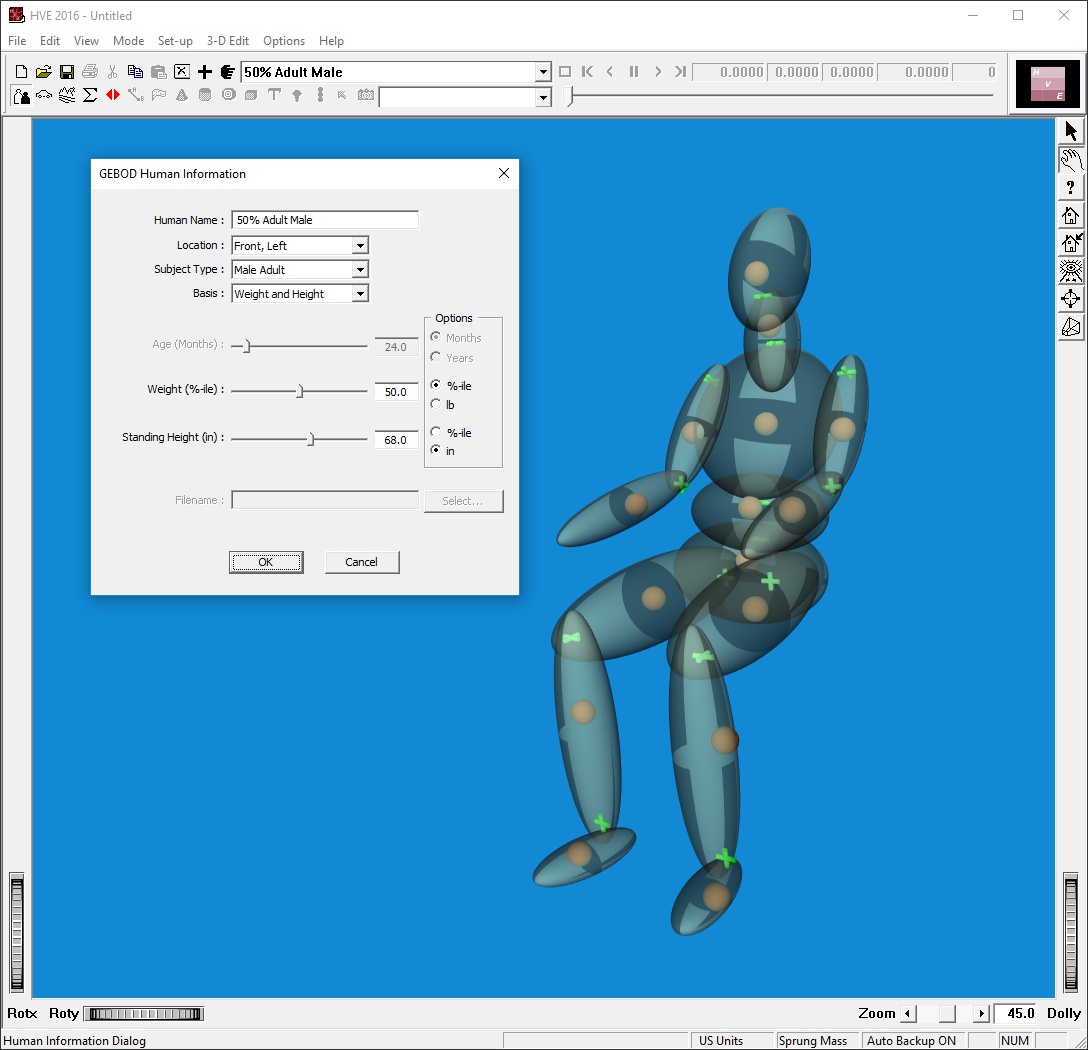
Figure 1-1: HVE Human Editor.
The HVE Human Editor contains several components common to the other four editors:
- Add Human pushbutton (Add New Object button on the toolbar)
- Active Humans List
- Current Human label
- Delete Human pushbutton (Delete button on the toolbar)
The Add Human pushbutton provides access to the HVE Human Databases and allows the user to add new humans to the current case. Any number of humans may be created, and, once created, are added to the Active Humans List. At any given time, the name of one of these humans is displayed in the Current Human label. This human is currently loaded in the editor and displayed in the Human Viewer. The current human may be modified using the tools available in the Human Editor. If the current human is no longer required for study, it may be deleted using the Delete Human pushbutton.
See also the dialog reference: Humans, in particular Human Information Dialog.
Vehicle Editor
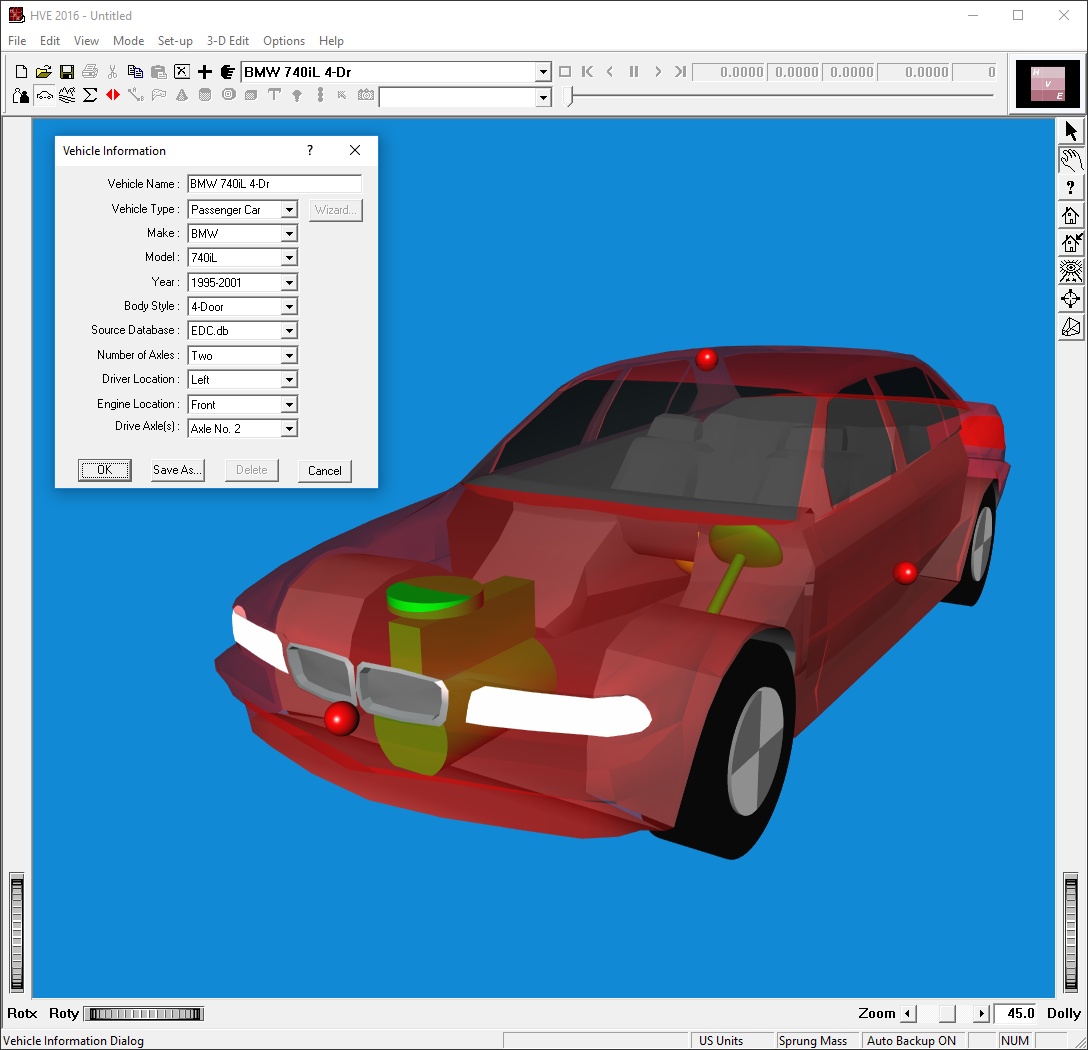
Figure 1-2: HVE Vehicle Editor.
This editor contains the following components:
- Add Vehicle pushbutton (Add New Object button on the toolbar)
- Active Vehicle List
- Current Vehicle label
- Delete Vehicle pushbutton (Delete button on the toolbar)
These components work for vehicles exactly like their Human Editor counterparts.
See also: Vehicles, in particular Vehicle Information Dialog.
Environment Editor
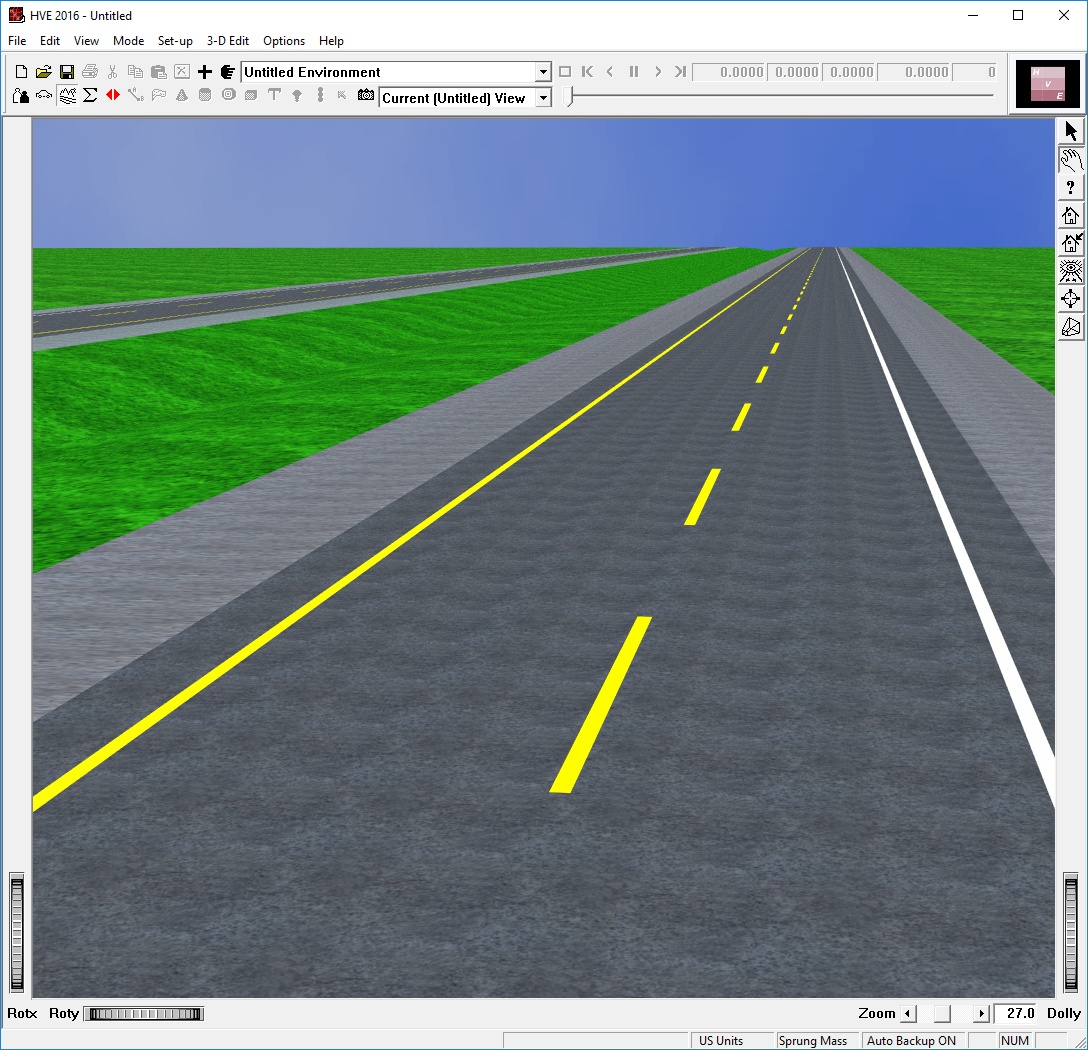
Figure 1-3: HVE Environment Editor.
The Environment Editor contains the following components:
- Add Environment pushbutton (Add New Object button on the toolbar)
- Current Environment label
- 3-D Editor (select 3-D Edit, Launch 3-D Editor from the main menu)
These components work for environments exactly like the previously described editors.
See also: Environment, in particular Environment Information Dialog, and the 3-D Editor reference.
Event Editor
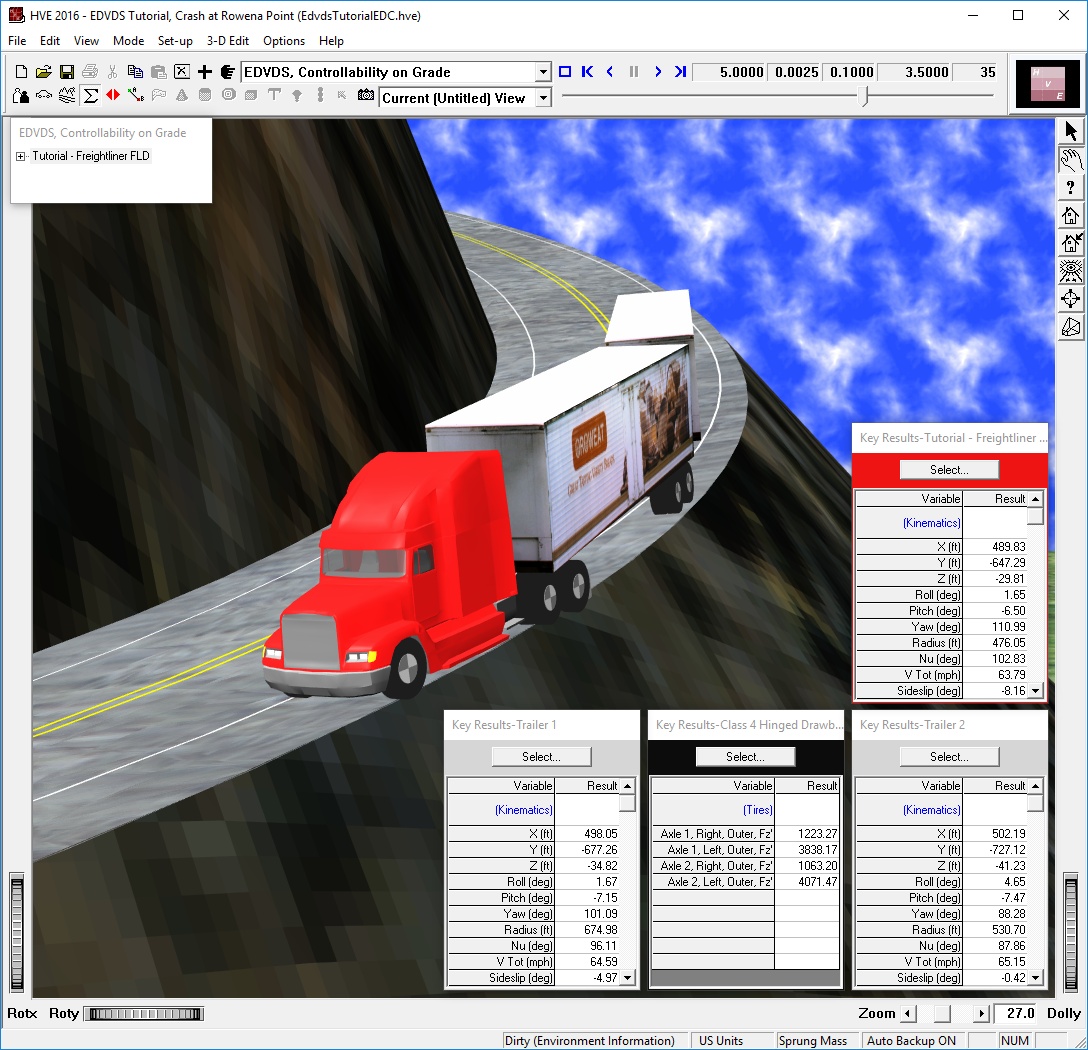
Figure 1-4: HVE Event Editor.
The Event Editor is used to study (i.e., simulate or reconstruct) the interactions between any of the active humans, vehicles and environment. An HVE Event is defined by selecting one or more humans and vehicles and a reconstruction or simulation model.
The Event Editor contains the following components:
- Add Event pushbutton (Add New Object button on the toolbar)
- Active Event List
- Current Event label
- Copy Event pushbutton (Copy button on the toolbar)
- Delete Event pushbutton (Delete button on the toolbar)
These components work for events exactly like the other editors. The Event Editor also has an Event Controller that allows the user to execute, pause and review the current event.
See also: Events & Driver Controls, in particular Event Information Dialog and Event Set-up Dialog.
Playback Editor
The HVE Playback Editor panel contains the following components:
- Add Report Window pushbutton (Add New Object button on the toolbar)
- Add Playback Window (added from Playback mode via the Playback Information dialog; the former Options, Add Playback Window menu path has been removed)
- Delete Window pushbutton (Delete button on the toolbar)
These components work for playback windows exactly like the other editors. The Playback Editor also has a Playback Controller that allows the user to execute, pause and review trajectory simulation windows.
Unlike the other editors, the Playback Editor may display multiple viewers, called Report Windows, each containing different output results for a particular event. These results may be:
- Numeric Reports
- Graphic Reports
- Trajectory Simulations
- Variable Output Tables
The Playback Editor is used to combine several individual trajectory simulations into a single Playback Window. The Playback Window may display multiple humans and vehicles from any number of events. This window also provides a professional video output capability.
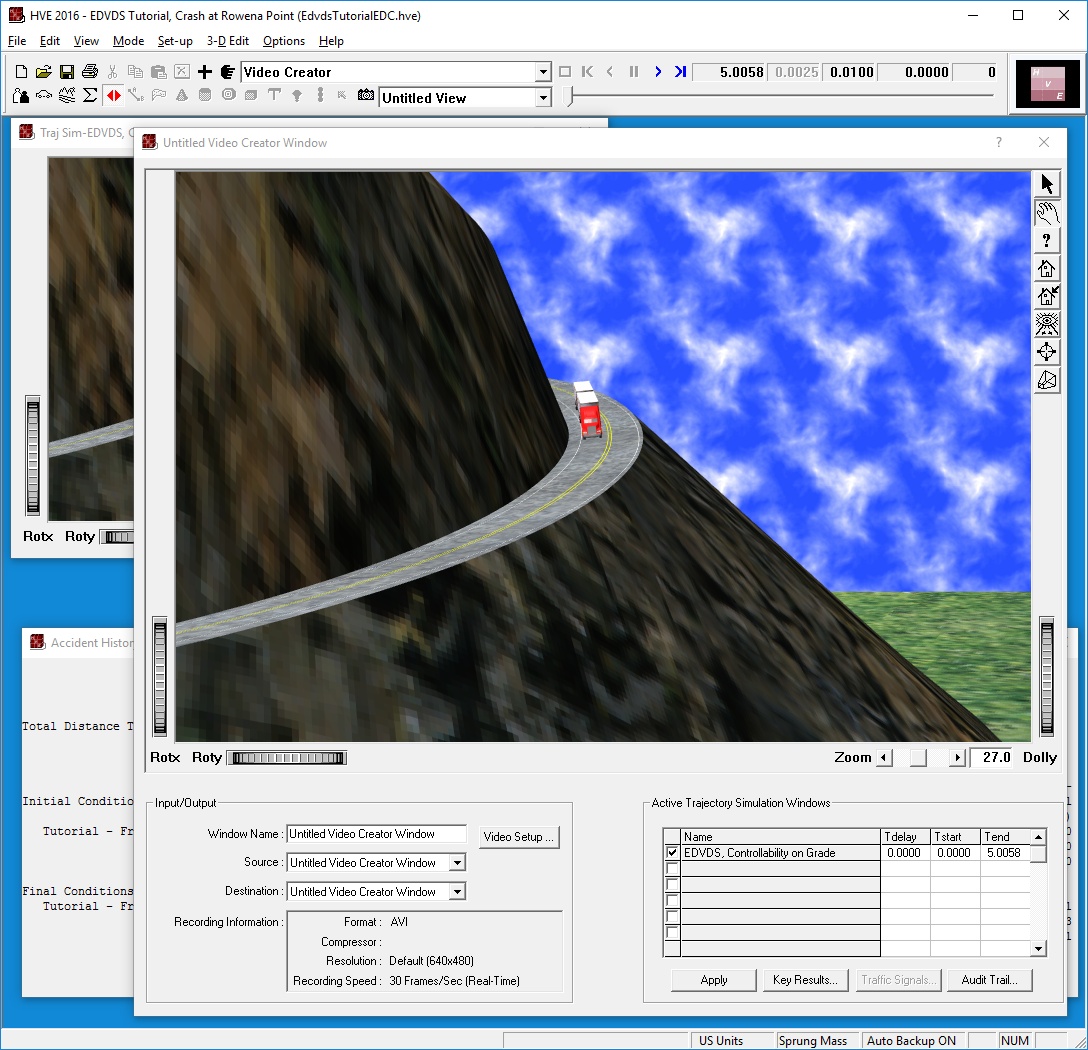
Figure 1-5: HVE Playback Editor, illustrating several types of windows and viewers.
For detailed information about each of these five HVE editors, refer to the individual editor's section in this manual.
See also: Reports & Output and Playback Controls.
← Previous: Using HVE — High-Level Overview | Index | Next: Chapter 2 — How To Use HVE →