Chapter 2 — Program Input
General Use
The ReadDataFile program is used to import time-based positional data into HVE to produce an HVE event representing the motion data contained in a space-delimited ASCII data file. Any type of motion can be defined in the data file, including motion from simulations as well as motion calculated in other ways. For example, a data file can be created that contains the time-position data from a vehicle overturn, a load coming off of a vehicle, a pole falling down, a helicopter landing, etc. Virtually any object motion can be generated using the ReadDataFile program and an appropriate ASCII data file.
The basic file format is shown in Figure 1. Each data file can have time-dependent position data for up to 10 different objects (updated: the limit is 10 objects — an event containing more than 10 vehicles is rejected with the message "ReadDataFile is limited to 10 objects"). The details of the data file format are contained later in this manual, but in general every data file contains six lines at the top of the file describing the data in the file. After these first six lines, the data file contains a time entry followed by all of the position and orientation data for every object for that instant in time. This is followed by the next time entry along with the position and orientation data for that instant in time, and so on.
Figure 1: General format of data file (** marks a line whose format changed from previous versions)
Version 3.500                    **
2D or 3D
Number of vehicles
Parent object numbers            **
Number of axles on each vehicle (one number for each vehicle; 3 vehicles = 3 separate numbers)
Number of humans
Time0
     X0  Y0  Z0  Yaw0  Pitch0  Roll0
     . .
Time1
     X1  Y1  Z1  Yaw1  Pitch1  Roll1
     . .
Time2
     X2  Y2  Z2  Yaw2  Pitch2  Roll2
     . .
The six header lines come first; each time entry is then followed by one data line per object, and by any tire or human-segment lines (shown as . .) described in Chapter 4.
The data file format is free-form, meaning spaces are ignored (except to separate data values). Note that there should not be any commas or tab characters in the data file. The data should be separated by one or more spaces. In general it is a good idea to "structure" the data file like the examples shown in this manual, with the time entry on a line by itself followed by a line of data values for each of the separate objects. This is not required but aids in visually checking the data.
NOTE: The initial positions must be specified. They can be entered at 0,0,0 and the program will move them to match the data file. The initial velocity has no effect.
Implementation
Prior to creating the ReadDataFile event, it is necessary to create the data file containing time-dependent position and orientation data for the various objects whose motion you wish to describe. The file should be of the format described in the previous section of this manual. Once that file is complete and in the correct format, save the file with a .dat extension in your HVE directory. For example, a valid file name would be CarMotion.dat and a valid path would be C:\Program Files\HVE\CarMotion.dat.
(updated: the data file must be placed in the HVE program directory — the folder that contains the supportFiles folder. ReadDataFile looks for it there and nowhere else. The data file name is limited to 30 characters, so keep it short.)
To create a ReadDataFile event:
- Create the object or objects whose motion you wish to describe using either the Human Editor or the Vehicle Editor.
- Click on the Event Editor button to enter the Event Editor.
- Click on the (+) sign to add an event. In the Event Name field enter
File:FILENAME, where FILENAME is the title of the motion data file. Figure 2 shows a sample Event Information dialog window. (updated: the event name must begin withFile:followed immediately by the data file name, with no space between them.) - Select the objects in the Event Humans & Vehicles dialog box in the order that their motion data appears in the data file.
- Set the Calculation Method type to ReadDataFile (shown as READDATAFILE in the method list).
- Click OK to create the event.
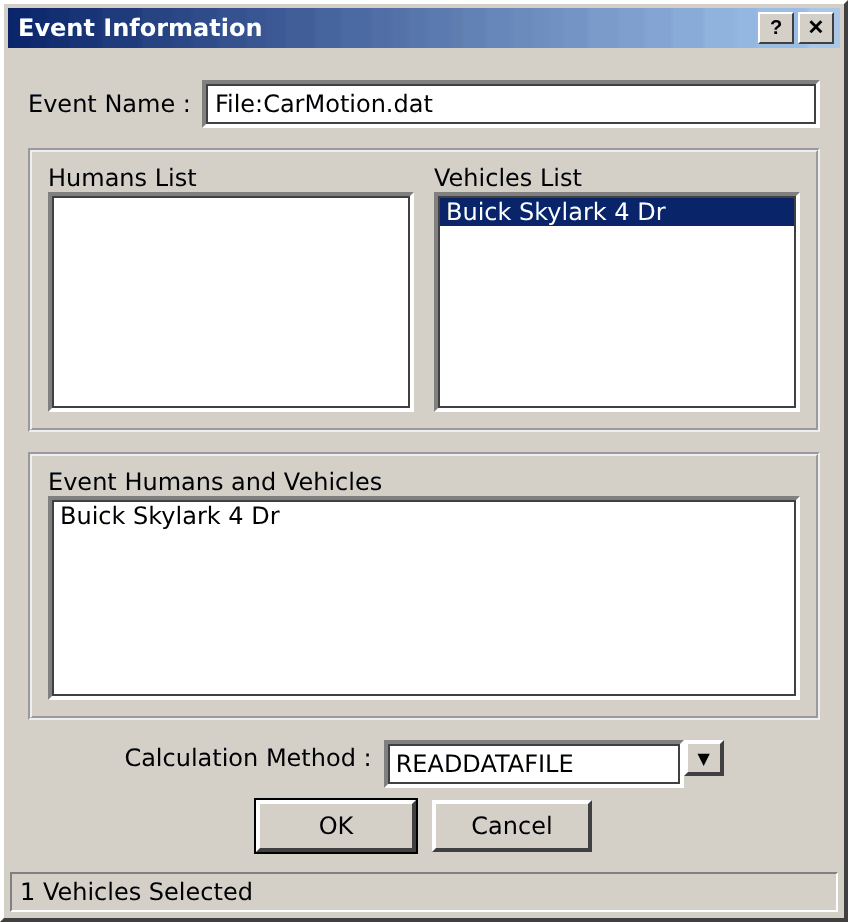
Figure 2: Event Information dialog window, showing an event named "File:CarMotion.dat" with a Buick Skylark 4 Dr selected and Calculation Method READDATAFILE.
If an error message is printed, such as the one shown in Figure 3 ("Bad or Incompatible Event Data"), there could be a problem with the format of the data in your motion data file, or the data file may not be in the HVE directory. Verify that the proper number of objects are selected and that the motion data file describes the motion of the same number of objects. Another option when troubleshooting an error message when executing a ReadDataFile event is to view the debug file in the HVE program directory using a text viewer. This file contains information regarding the operation of ReadDataFile when trying to access your data file and may indicate where the error lies.
(updated: the 2004 manual calls this debug file ReadDataFileDebug.prn in C:\Program Files\HVE. The current release writes it as ReadDataDebugFile.prn in the HVE program directory. The debug file echoes the expected basic file format, the header values as they are read, the number of data lines expected per time increment, and the ending time and time increment.)
Once the event is created without any error messages, set the initial position for all of the objects contained in the event to arbitrary values. Since the initial positions and orientations of the objects are contained in the data file, HVE will discard these arbitrary entries and use the data file values for the initial position and orientation in the ReadDataFile event.
Click on the execute button to execute the ReadDataFile event.
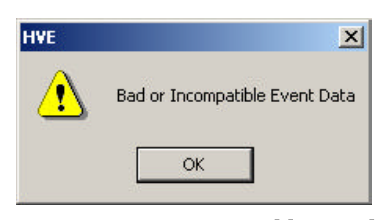
Figure 3: Error Message returned by ReadDataFile — an HVE alert dialog reading "Bad or Incompatible Event Data".
← Previous: Chapter 1 — Program Description | Index | Next: Chapter 3 — Calculation Method →